 Tr4wl
Tr4wlManual
Tr4wl does one thing: it finds files by name, anywhere on your disk, instantly. Most of this page is optional - if you only read the first two chapters you already know how to use it.
1Getting started
- Open the disk image and drag Tr4wl into your Applications folder.
- Launch it. The first launch builds the index. On a large home folder this takes about ten seconds, once. After that it opens instantly.
- Tr4wl will ask for Full Disk Access. Read the next part before you decide.
Why it asks for Full Disk Access
Because that is the only way macOS will let any app look inside certain folders. There are three tiers on your Mac, and only the third one needs this permission:
| Where | Permission needed |
|---|---|
| Most of your home folder, caches, hidden files, the inside of apps | none |
| Desktop, Documents, Downloads | a one-off prompt for each |
| Mail, Messages, Safari data, and other apps' private folders | Full Disk Access - macOS offers no smaller permission for these |
You can say no, and Tr4wl still works. It will search everything in the first two tiers just as fast. You simply won't get results from the third tier - which is also the part most other search tools can't reach. It's your call, and you can change your mind later in System Settings.
Granting it
- In the message Tr4wl shows, click Open Settings. (Or go to System Settings › Privacy & Security › Full Disk Access yourself.)
- Turn on Tr4wl in the list.
- macOS will ask you to quit and reopen the app. That's normal.
Tidy the list while you're there. If you ever moved or reinstalled Tr4wl, an old greyed-out entry can sit in that list and quietly do nothing. Remove any duplicate and keep the one you actually launch.
What Tr4wl does with it
It reads names, sizes and dates. It reads file contents only for the files you explicitly run a content search over. It sends nothing anywhere - no analytics, no crash reports. It uses the network for three things only: activating your licence, re-checking it every couple of weeks, and looking for updates. Those requests carry your licence key and nothing else - no file names, ever.
2Your first search
Type. That's the whole thing.
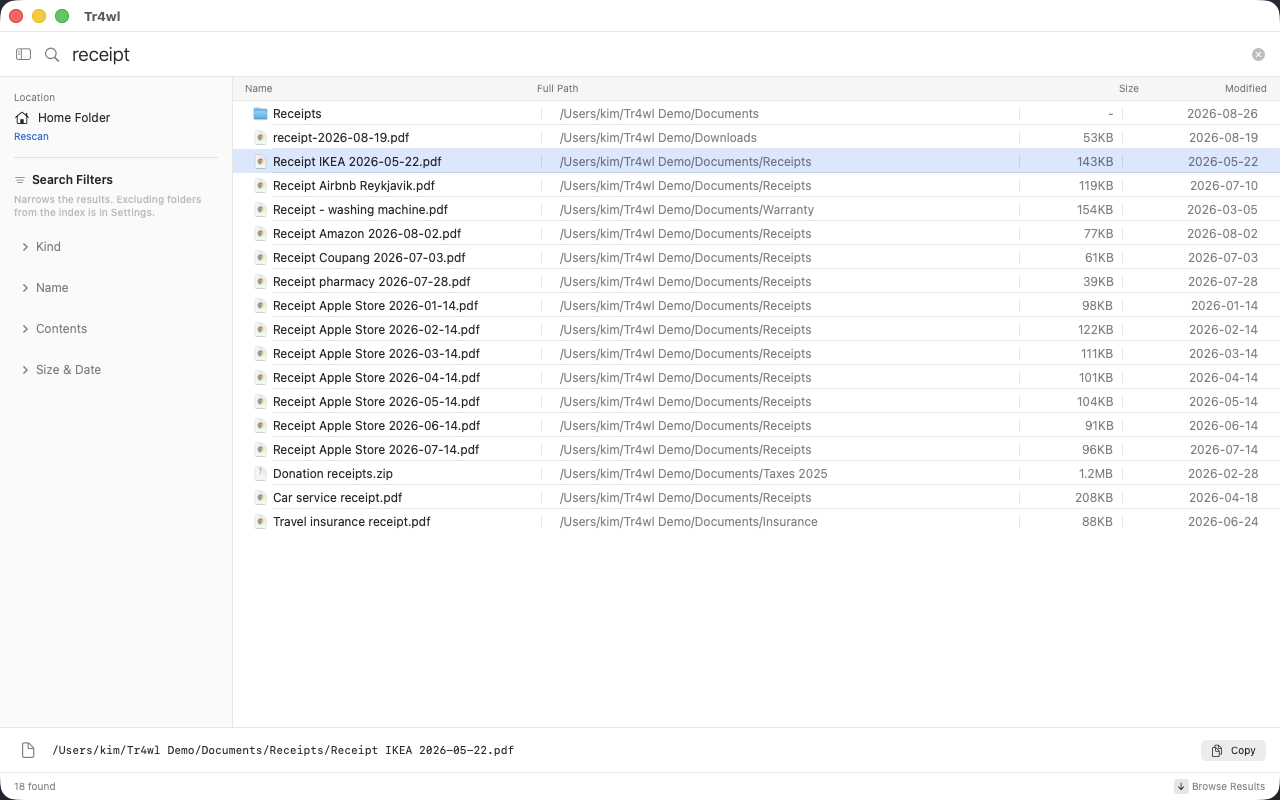
Results appear as you type and narrow with every letter. You don't need wildcards, you don't need to press Return, and you don't need to tell it where to look - it already knows what's on the disk.
Reading the list
Matches are ordered by how well they fit, not alphabetically:
- Names that start with what you typed
- Then matches at a word boundary (
Car service receiptfor "receipt") - Then anything that merely contains it
Within the same tier, shallower folders and shorter names come first - so the file you actually meant tends to be near the top.
Moving around
| ↓ | Leave the search field and start walking the list |
| Space | Preview the selected file without opening it |
| ↩ | Open it |
| ⌘↩ | Show it in Finder |
| Esc | Back to the search field |
The strip along the bottom of the window always shows the keys that apply right now, so you don't have to remember this table.
Summoning the window from anywhere
Tr4wl stays running so the index stays warm. A global shortcut brings it forward from whatever app you're in, and the same shortcut hides it again. The default is ⌃F7; change it in Settings › General.
If a function-key shortcut seems dead: macOS may be treating F-keys as brightness and volume keys. Either hold fn as well, or turn on "Use F1, F2, etc. keys as standard function keys" in keyboard settings - or just pick a different shortcut.
3Learning by example
These are the searches that show what Tr4wl is for.
"That receipt from a few months ago"
Type receipt. You get every one of them at once - the ones you filed in
Documents, the one still sitting in Downloads, and the one that arrived as an email
attachment. They were never in the same place; now they're in the same list.
"The screenshot I took last Tuesday"
Type screenshot, then click the Modified column to sort by date.
Everyone has hundreds of these and no idea which is which - sorting by date is usually
faster than remembering.
"Something inside another app"
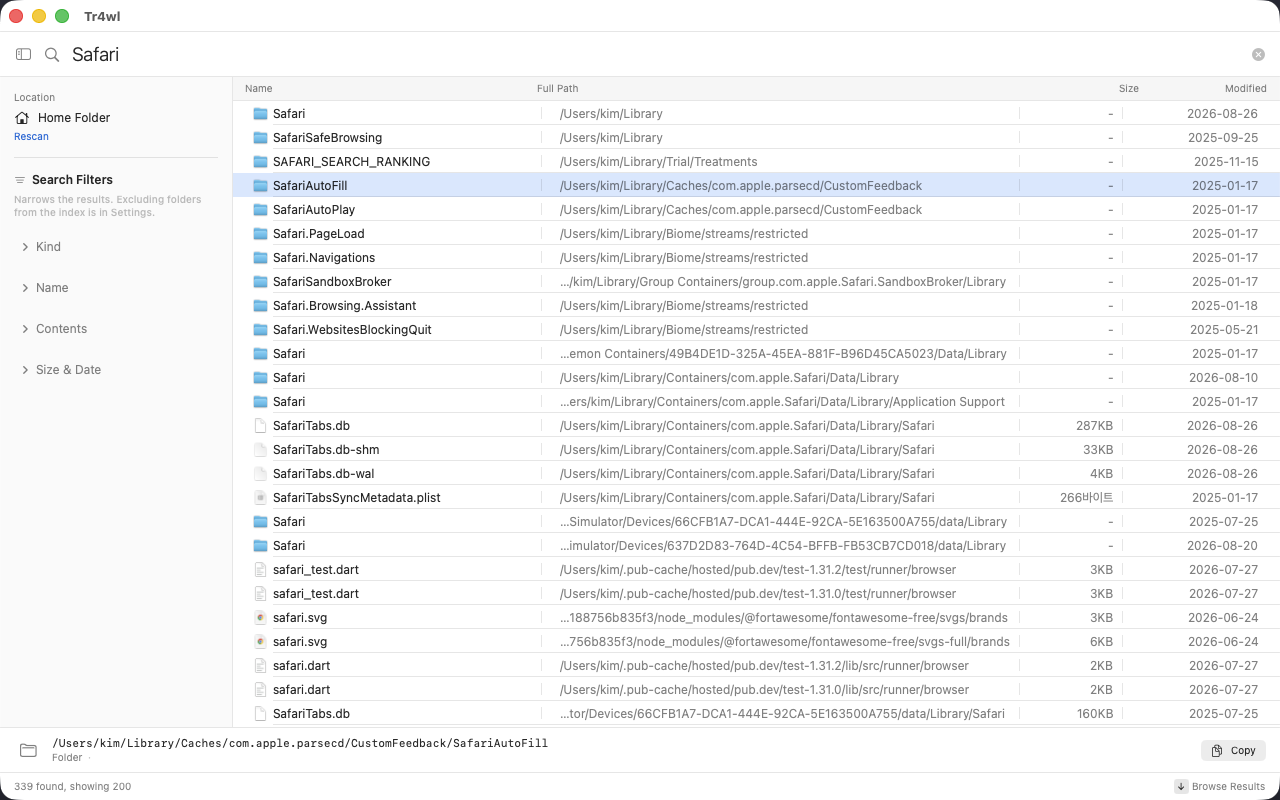
Safari on a real disk. Several of those results are
inside ~/Library/Containers - each app's own private folder.
This is the part that needs Full Disk Access, and the part other tools tend to miss."I know a word that's inside the file, not in its name"
Open Contents in the left panel and type the word there. Tr4wl narrows by filename first and then reads only the files that survived, so it stays quick and there's no content index sitting on your disk. Binary files are skipped.
"Everything in one particular folder"
Put a slash in your search - Downloads/receipt - and Tr4wl matches against the
whole path instead of just the name.
4Doing things with results
Finding the file is usually not the end of the job. Select a row and:
| Do this | Key |
|---|---|
| Open the file | ⌘O or ↩ |
| Show it in Finder | ⇧⌘R or ⌘↩ |
| Open the folder it lives in | File menu |
| Preview it (Quick Look) | ⌘Y or Space |
| Copy its full path | ⌘C |
| Rename it | File menu |
| Move it to the Trash | ⌘⌫ |
| Save the whole result list to a file | ⌘E |
You can also drag any result straight out of the window into Finder, Mail, or anything else that accepts a file. Right-clicking a row gives you the same list as a menu.
There is no "delete immediately". Files go to the Trash, where you can get them back. Nothing in Tr4wl destroys a file outright - that's deliberate.
While the preview is open you can keep pressing ↑ and ↓ to walk through results and watch each one appear. It's the fastest way to find "the right photo out of nine similar ones".
5Narrowing it down
When a search returns too much, the panel on the left has four groups. They start collapsed and stay out of the way.
| Kind | Only images, only documents, only folders, and so on |
| Name | Extra conditions on the name itself |
| Contents | A word that must appear inside the file |
| Size & Date | Bigger than, smaller than, changed since |
A collapsed group still shows a badge when something is set. This matters: a forgotten filter is the usual reason a search "stops working". If results look wrong, glance at the badges first.
Columns and sorting
Click any column heading to sort by it, click again to reverse, and click a third time to return to relevance order. Name, path, kind, size and three different dates are available, plus the relevance order described in chapter 2. Choose which columns you see in Settings › Columns.
Folders are listed before files, whatever the sort. Turn that off in Settings › Results, or set the Kind filter to Only files when you want files alone.
Where it looks
By default Tr4wl indexes your home folder. Mounted volumes appear in the left panel and you can add them. To leave particular folders out of the index entirely, use Excluded Folders in the app menu.
Network drives and NAS aren't supported. You can add one and Tr4wl will let you, with a warning - but indexing and change-tracking both depend on things network volumes don't provide, so treat it as unreliable rather than broken.
6When you need more
Everything below here is optional. Plenty of people never use any of it.
Combining words
swift core | both words, in any order |
swift | kotlin | either one |
swift !test | the first, but not the second |
"index store" | exactly that, spaces included |
<swift | kotlin> !test | grouping, so "not test" applies to both |
Patterns
Turn on regular expressions when a substring isn't precise enough - for example
^IMG_\d{4}\.HEIC$ for camera files and nothing else. Pattern searches take
longer than plain ones because every name has to be tested, but "longer" here still means
a fraction of a second.
Why it re-checks your licence
Every couple of weeks Tr4wl asks whether your licence is still valid. That is the only way it can know if a purchase was refunded - the app has no server of ours behind it.
If you're offline it simply tries again later; nothing stops working. Tr4wl only locks if the answer comes back that the licence was refunded or cancelled, and it says so plainly rather than just going quiet.
Saved searches
If you run the same search often, press ⌘S to keep it. Saved searches get ⌘1 through ⌘9 and remember their filters too.
How the index stays current
Tr4wl watches the filesystem, so a file you save is findable straight away. There is nothing to schedule and no re-scan when you launch. Once a day it re-checks everything as a safety net, and you can force that yourself with ⌘R.
The index lives in memory and is written out when you quit, then mapped back in on launch - which is why the window is usable about a hundredth of a second after you open it. It is excluded from Time Machine, and deleting the app takes it with it.
7Settings & keyboard shortcuts
⌘, opens Settings. Seven sections:
| General | Global shortcut, open at login, menu bar icon, search as you type, hide after opening |
| Results | Folders first, rows at a time, text size, how paths are written |
| Columns | Which columns appear in the list |
| Language & Region | English or Korean, and date format |
| Appearance | Light, dark, or follow the system |
| Index | Extra volumes and excluded folders |
| Licence | Your licence key, and how long the trial has left |
Every shortcut
| Key | What it does |
|---|---|
| ⌃F7 | Show or hide Tr4wl from anywhere (changeable) |
| ⌘F | Jump to the search field |
| ↓ / Esc | Into the list / back to the field |
| Space / ⌘Y | Quick Look |
| ↩ / ⌘O | Open |
| ⌘↩ / ⇧⌘R | Reveal in Finder |
| ⌘C | Copy path |
| ⌘⌫ | Move to Trash |
| ⌘E | Export results |
| ⌘S / ⌘1–⌘9 | Save a search / recall one |
| ⌥⌘S | Show or hide the left panel |
| ⌘R | Rescan now |
| ⌘W / ⌘Q | Close the window / quit |
Closing the window doesn't quit Tr4wl, and that's on purpose - it keeps the index warm so the next search is instant. Bring it back with the global shortcut or the menu bar icon. Quit properly with ⌘Q. If you'd rather it also vanish from the Dock when closed, there's a setting for that.
8If something goes wrong
A search finds nothing, and you're sure the file exists
Check permissions first, before anything else. When macOS refuses Tr4wl a folder, it doesn't produce an error - the folder simply appears empty. That makes a missing permission look exactly like a missing file.
- System Settings › Privacy & Security › Full Disk Access - is Tr4wl on, and is it the copy you actually launch? Remove stale entries.
- Is a filter still set from earlier? Look for badges on the collapsed groups in the left panel, and reset them.
- Is the file on a network volume? Those aren't supported.
- Press ⌘R to rescan.
After you update Tr4wl, or if it was reinstalled, Full Disk Access can reset. macOS ties the permission to the exact signature of the app, so a change there means granting it once more. Same symptom: results quietly thin out.
The first launch is taking a while
Building the index from scratch takes roughly ten seconds for a few million files. It happens once. If it seems to take much longer, the disk is probably busy with something else - Time Machine, a large copy, Spotlight reindexing.
A pattern search feels slow
Regular expressions have to be tested against every name, so they can't use the same shortcuts a plain search uses. Type a plain word first to shrink the field, then add the pattern.
I lost my licence key
It can't really be lost. Your key lives permanently in your customer portal at polar.sh/dalgureum-lab/portal - enter the email address you bought with and it sends you a sign-in link. The key is there, and so is the button to free up a Mac.
That page works even if you deleted the purchase email, changed computers, or bought Tr4wl years ago. If the email address is the problem too, write to us with anything you remember about the purchase and we'll find it.
My licence stopped being recognised
This can happen if the app's signature changed. Enter your key again - reactivating on a Mac you've already activated doesn't use up another one. If it still refuses, email us; we can free up an activation from our side.
Still stuck
Write to hello@dalgureum.dev. Telling us your macOS version and what you searched for is usually enough to work out what happened.